



AutomatorWP GPL – WordPress Plugin
$4.49
AutomatorWP – Google Sheets is an add-on for AutomatorWP that connects your WordPress site to Google Sheets and adds rows to a spreadsheet as part of an automation. Google Sheets is a free online.
AutomatorWP – Google Sheets is an add-on for AutomatorWP that connects your WordPress site to Google Sheets and adds rows to a spreadsheet as part of an automation. Google Sheets is a free online spreadsheet editor for creating, editing and collaborating on spreadsheets anywhere with anyone. The plugin provides one action, Add a row to a spreadsheet, which you point at a chosen spreadsheet and worksheet and fill with the data to insert.
| Product | AutomatorWP – Google Sheets |
|---|---|
| Version | 1.0.9 |
| Works with | WordPress 4.4+ / PHP 8.x+ |
| Tested up to | WordPress 6.7 |
| License | GPLv2 or later |
| Delivery | Instant ZIP download, 10 downloads, 365 days |
What the Add a row to a spreadsheet action does
The action writes the rows you define into the spreadsheet you select on its setup screen. Two fields drive it: Select a spreadsheet and Select a worksheet. A separate field holds the rows to insert in the spreadsheet.
When the automation runs, the plugin reports the result in the interface. A successful run shows Data added to the spreadsheet successfully! If the action has no spreadsheet selected on its setup, it reports No spreadsheet selected on the action's setup. If there is nothing to write, it reports No data found to insert.
Connecting your site to Google Sheets
The connection uses your own Google API credentials. Enter your Google API client ID and your Google API client secret in the plugin settings, then copy the URL the plugin shows and place it in the authorized redirect URIs field of your Google API project.
After that, use Connect with Google Sheets. A completed connection shows Site connected with Google Sheets successfully, while an unfinished one shows Site not connected with Google Sheets. All fields are required to connect with Google Sheets, and a refresh token field is part of the settings. The plugin includes a check to ensure a refresh token for the Google Sheets API, plus settings to get the connection and to refresh the token.
Google Sheets in WooCommerce and Elementor workflows
Because the action runs inside AutomatorWP, it can sit at the end of an automation that starts elsewhere on your site. Order data from WooCommerce can be written to a sheet, and data collected from forms built with Elementor can be added the same way, so rows land in Google Sheets without manual input.
The plugin supports line breaks in the data it inserts, and it supports Import CSV integration. Access to shared drives is improved in the settings, so a spreadsheet kept on a shared drive can be reached through the same connection.
What you receive with this GPL build
You get the same plugin files the developer ships, distributed as a GPL build for $4.49. The zip is 0.0 MB. There is no vendor update channel and no vendor support desk attached to this purchase; the developer's own updates and support are not part of it.
The plugin requires WordPress 4.4 and has been tested up to WordPress 6.7. This build is version 1.0.9.
What this build includes
| Add a row to a spreadsheet | AutomatorWP action that writes the rows you define into a Google Sheets spreadsheet as part of an automation. |
|---|---|
| Spreadsheet and worksheet selection | Pick the target spreadsheet and the worksheet inside it on the action's setup screen. |
| Google API credentials | Enter your own Google API client ID and client secret, then place the plugin's redirect URL in the authorized redirect URIs field. |
| Connection status messages | Settings report a successful Google Sheets connection or warn that the site is not connected, and list missing fields. |
| Refresh token handling | Settings to get the connection and refresh the token, with a check that a refresh token for the Google Sheets API exists. |
| Line breaks in inserted data | Rows written to the spreadsheet can carry line breaks in their values. |
| CSV import integration | Support for Import CSV integration when bringing spreadsheet data into your automations. |
| Shared drive access | Improved access to shared drives through the plugin's connection settings. |
Installing it on a WordPress site
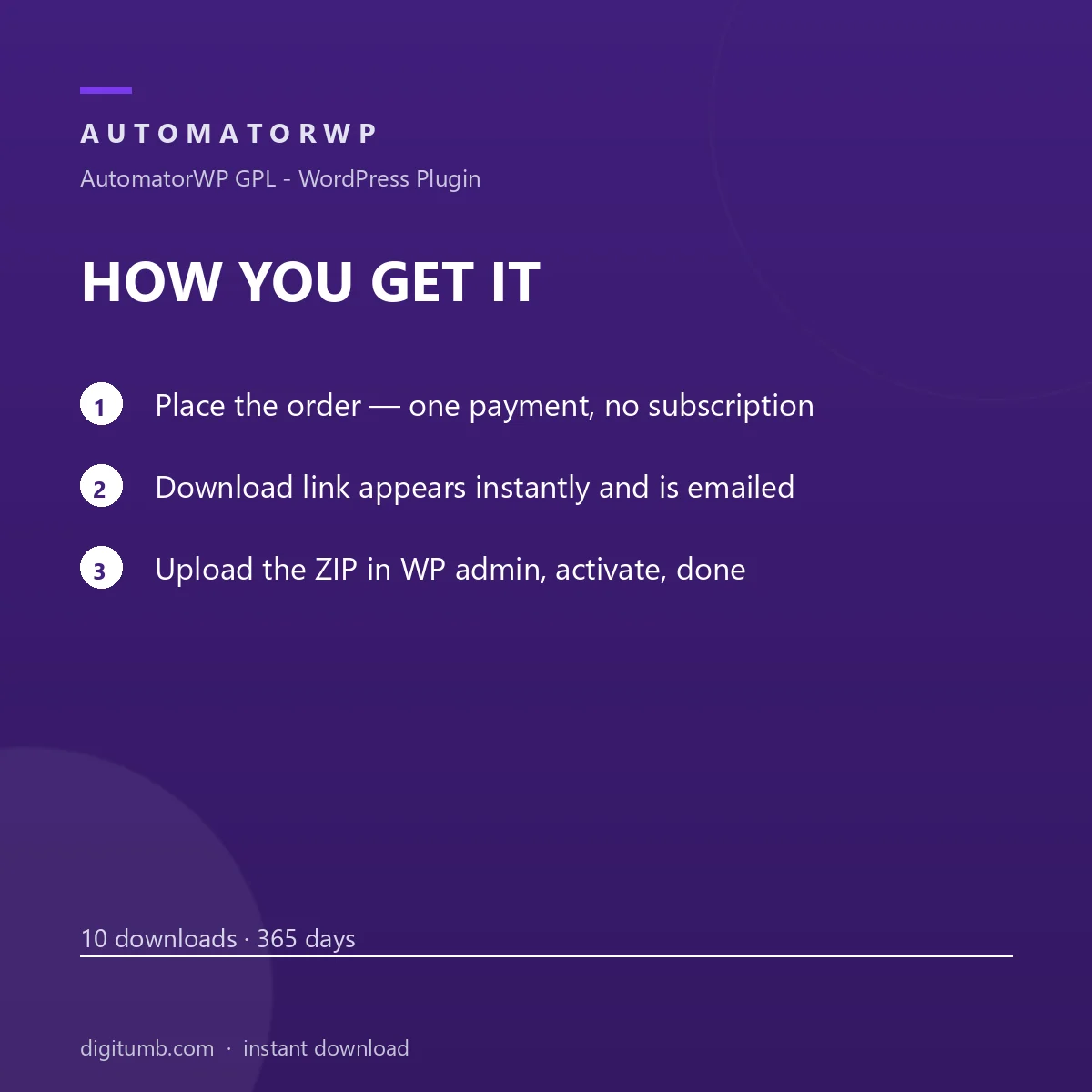
- In your WordPress backend, go to Plugins -> Add new and click Upload Plugin next to the Add plugins title.
- Upload the downloaded zip file and activate the plugin. Alternatively, upload the zip into your wp-content/plugins/ folder, unzip it, then open the Plugins menu and activate it.
- Open the plugin settings, enter your Google API client ID and client secret, add the shown URL to the authorized redirect URIs field, and use Connect with Google Sheets.
Latest changes
Version 1.0.9 adds support for line breaks.
Frequently asked questions
What does AutomatorWP – Google Sheets do?
It connects your WordPress site to Google Sheets so an automation can add a row to a spreadsheet without manual input. You select a spreadsheet and worksheet and supply the rows to insert; the plugin writes them and confirms with Data added to the spreadsheet successfully.
Do I need my own Google API credentials?
Yes. The settings ask for your Google API client ID and client secret, and the plugin shows a URL you copy into the authorized redirect URIs field. All fields are required to connect with Google Sheets, and a refresh token field is part of the setup.
Can it write WooCommerce order data to a sheet?
Yes. AutomatorWP – Google Sheets is compatible with WooCommerce, so order data can be transferred to your Google Sheets through an automation instead of being entered by hand. The same action writes the rows you define into the selected spreadsheet and worksheet.
Does it work with forms built in Elementor?
Yes. The plugin works with Elementor, allowing you to automate data collection from forms created with the Elementor page builder. The collected data is added to the spreadsheet through the Add a row to a spreadsheet action.
What happens if the action is not fully set up?
The interface tells you. If no spreadsheet was chosen, it shows No spreadsheet selected on the action's setup. If there is nothing to write, it shows No data found to insert. A completed run shows Data added to the spreadsheet successfully!
Which WordPress version does it need?
The plugin requires WordPress 4.4 and has been tested up to WordPress 6.7. Installation uses the standard route: upload the zip from Plugins -> Add new, or place it in wp-content/plugins and activate it from the Plugins menu.
What the GPL build means for you
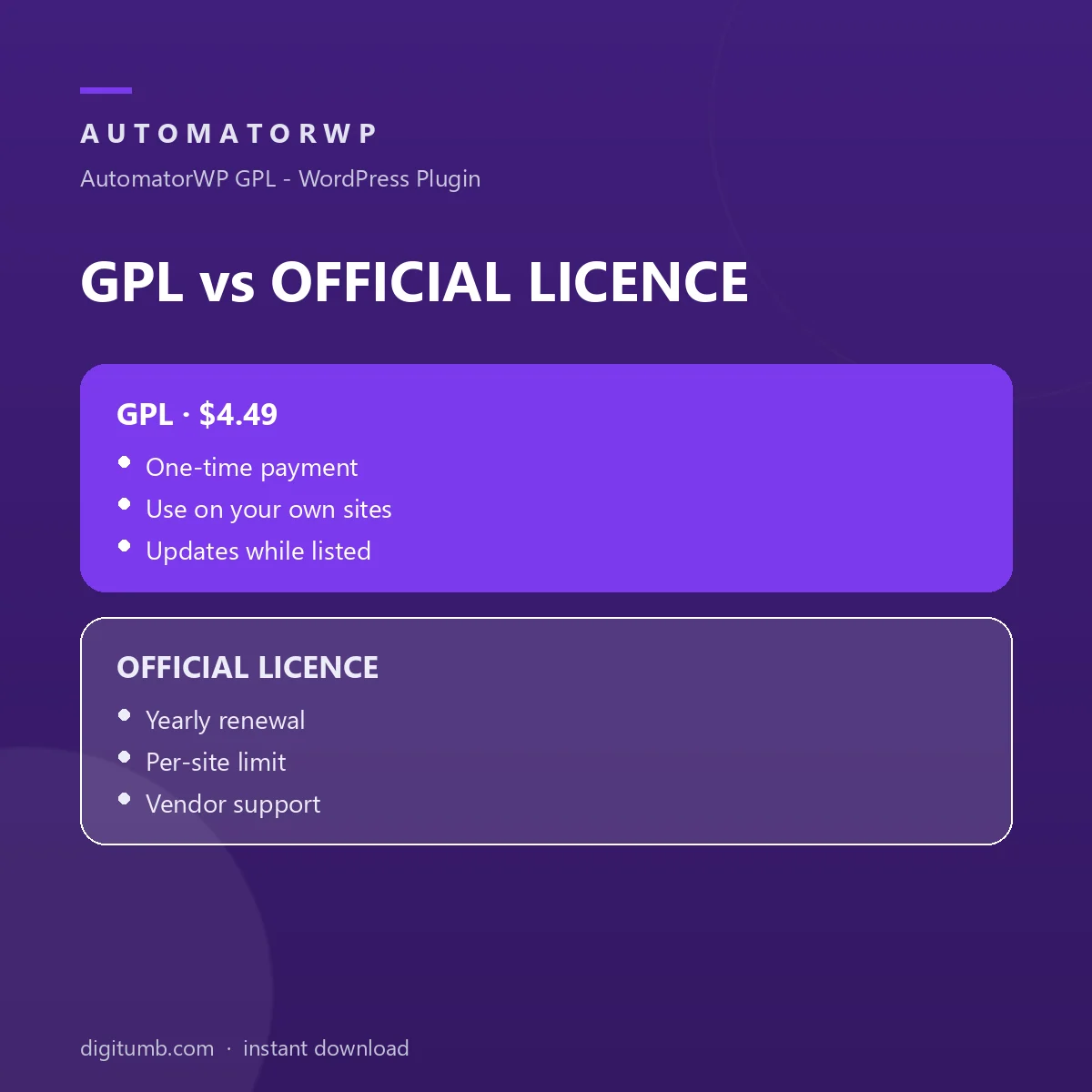
This is the same archive the developer publishes, redistributed under the GNU General Public License: you get the working files for $4.49 with no vendor update channel and no vendor support desk. If you need automatic updates or a support contract, buy the official license from the developer.
| This GPL build | Official license | |
|---|---|---|
| Price | $4.49 one time | Vendor subscription |
| Automatic updates | No | Yes |
| Developer support | No | Yes |
| Number of sites | Unlimited | Depends on plan |
Browse the rest of the WordPress plugins category or the full shop. The licence text is at GNU GPL v2, and general documentation is at WordPress.org.
You must be logged in to post a review.
You may also like…

Related products








Reviews
Clear filtersThere are no reviews yet.