
Gravity Forms Dropbox Addon GPL
$4.49
Gravity Forms Dropbox Addon is a WordPress plugin that connects Gravity Forms to Dropbox so submitted files land in a Dropbox folder you choose.
Gravity Forms Dropbox Addon is a WordPress plugin that connects Gravity Forms to Dropbox so submitted files land in a Dropbox folder you choose. Each form feed points at a specific File Upload field and a destination folder, and an upload condition can hold files back until payment is received. You connect your Dropbox account from the plugin settings, then manage everything from the feed screen.
| Product | gravity-forms-dropbox-addon |
|---|---|
| Version | 3.3.2 |
| Works with | WordPress 6.x+ / PHP 8.x+ |
| Tested up to | WordPress current |
| License | GPLv2 or later |
| Delivery | Instant ZIP download, 10 downloads, 365 days |
Connecting your Dropbox account from the plugin settings
The settings screen carries a Connect to Dropbox button and a Disconnect from Dropbox option. Once the account is linked, the page shows a confirmation line reading Connected to Dropbox as: followed by the account name, so you can see at a glance which Dropbox account is in use. An OAuth Redirect URI is displayed for the connection.
If the link breaks, the plugin says so. Messages cover a mismatched state, an upload that could not reach Dropbox, an access denial, and a connected Dropbox app that is disabled or has been deleted. In that last case the screen offers Reconnect to Dropbox, and a failed account lookup reports that account information could not be retrieved.
Setting up a Dropbox feed for a specific upload field
Each feed starts with a feed name that uniquely identifies the setup. You then pick the File Upload field whose files should go to Dropbox and the Destination Folder they should land in. The feed can allow multiple files to be selected, or be limited to All File Upload Fields.
Uploads can be made conditional. Enable Condition turns the rule on, and Upload to Dropbox if defines when the feed fires. The plugin also supports holding files until payment is received, which keeps a submission out of Dropbox while the order is still unpaid.
What happens when the Dropbox side is not ready
The Dropbox Upload field needs configuration before it works. Until the Dropbox settings are filled in, the field shows Configuration Required with a pointer to those settings, and separately flags that it requires additional configuration. A Dropbox Button Preview lets you see the field as visitors will.
Errors are reported plainly rather than silently. The plugin notes when a file type is not allowed, when a feed was not processed because the API was not initialized, and when an access token could not be retrieved from Dropbox.
Using the add-on alongside Elementor, WooCommerce and security plugins
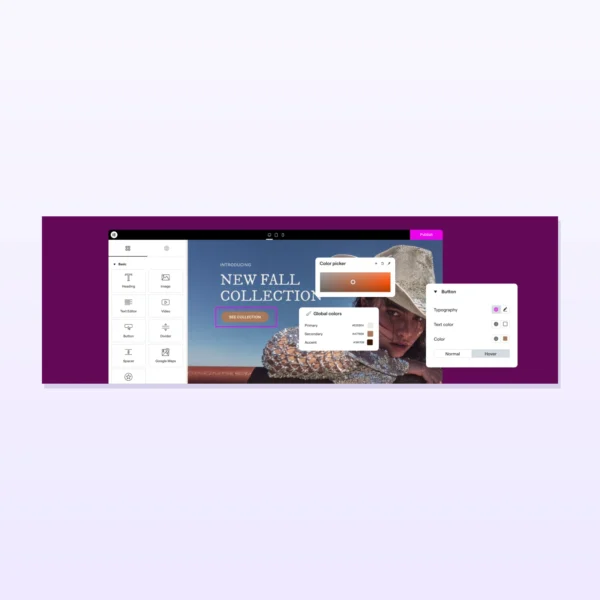
The add-on is built to work with other popular WordPress plugins, including WooCommerce and various security plugins. Forms can also be embedded inside Elementor pages, so the Dropbox upload field appears wherever you place the form.
The package contains css, js and images folders alongside the plugin files. The download is a 0.1 MB zip, version 3.3.2.
What this build includes
| Direct upload to Dropbox | Files submitted through a Gravity Forms upload field are sent straight to a Dropbox folder you name in the feed. |
|---|---|
| Per-field feed routing | Choose the specific File Upload field that should go to Dropbox, or apply the feed to all upload fields. |
| Destination folder selection | Set the Dropbox Destination Folder for each feed so different forms can file their uploads in different places. |
| Payment-gated uploads | Hold files back from Dropbox until payment is received, so unpaid submissions do not reach your cloud storage. |
| Conditional upload rules | Enable a condition and define when the feed should upload, giving control over which submissions trigger a transfer. |
| Multiple file support | Allow multiple files to be selected in a feed, so a single submission can carry more than one upload. |
| Account connection panel | Connect and disconnect Dropbox from the settings screen, with the connected account name shown after linking. |
| File type checking | The plugin reports when an uploaded file type is not allowed rather than accepting it without notice. |
Installing it on a WordPress site
- Install and activate the plugin from your WordPress dashboard.
- Open the settings page, click Connect to Dropbox and authorise the account using the OAuth Redirect URI shown there.
- Create a Dropbox feed: name it, choose the File Upload field, set the Destination Folder and configure the upload condition.
Latest changes
This listing is version 3.3.2 of the plugin, delivered as a 0.1 MB zip.
Frequently asked questions
What does Gravity Forms Dropbox Addon actually do?
It lets users upload files directly to a specified Dropbox folder through Gravity Forms, which simplifies file collection and management. You define a feed that names the upload field and the destination folder, and submissions are transferred to your Dropbox storage from there.
How do I set the add-on up on my WordPress site?
Install and activate the plugin from your WordPress dashboard, then go to the settings page to connect your Dropbox account and configure your upload preferences. After the account is linked, you build a feed that picks the File Upload field and the Destination Folder.
Can I stop files reaching Dropbox before an order is paid?
Yes. The add-on includes an option to upload files to Dropbox only when payment is received, and feeds also support an upload condition with an Upload to Dropbox if rule, so you decide when a transfer happens.
Does it work with Elementor and WooCommerce?
The add-on is designed to work with other popular WordPress plugins, including WooCommerce and various security plugins, and it works with Elementor so you can embed your forms inside Elementor pages.
What happens if the Dropbox connection breaks?
The settings screen reports the problem, including a mismatched state, denied access, a failed account lookup or a connected app that is disabled or deleted. When the app has been removed you get a Reconnect to Dropbox option to link the account again.
What licence does this build come with?
This is a GPL build: the same files the developer ships, sold at $4.49 with no vendor update channel and no vendor support desk. Updates included for life refers to the vendor product; here you rely on the GPL package itself.
What the GPL build means for you
This is the same archive the developer publishes, redistributed under the GNU General Public License: you get the working files for $4.49 with no vendor update channel and no vendor support desk. If you need automatic updates or a support contract, buy the official license from the developer.
| This GPL build | Official license | |
|---|---|---|
| Price | $4.49 one time | Vendor subscription |
| Automatic updates | No | Yes |
| Developer support | No | Yes |
| Number of sites | Unlimited | Depends on plan |
Browse the rest of the WordPress plugins category or the full shop. The licence text is at GNU GPL v2, and general documentation is at WordPress.org.
You must be logged in to post a review.
You may also like…
Related products





Reviews
Clear filtersThere are no reviews yet.